We all navigate a vast digital world every day. Understanding the tools we have is key to controlling our journey.
A proxy server is like a middleman. It sits between your device and the internet, handling your requests.
This simple tool offers big benefits. It can hide your real IP address for privacy. It can also let you access content blocked in your area. Plus, it adds security by filtering your web traffic.
In this guide, I’ll explain this important technology simply. You’ll learn how a proxy works and its types. I’ll also show you how to set one up yourself.
Key Takeaways
- A proxy server acts as a gateway between your device and the internet.
- It hides your real IP address, enhancing your online privacy.
- Proxies can help you access geo-restricted websites and content.
- They provide a basic security layer by filtering incoming web traffic.
- Different proxy types (like residential or datacenter) serve different purposes.
- Using a proxy often involves a simple change in your device or browser settings.
- Understanding this tool is a major step toward managing your digital footprint.
What is a Proxy? Defining the Digital Middleman
A proxy acts as a digital go-between, protecting your identity online. When you browse, your computer usually talks directly to a website. But with a proxy, it acts as an intermediary for all your internet traffic.
This change is powerful. It adds a layer of protection between your device and the internet. The core proxy meaning is about representation and facilitation.
The Textbook Proxy Definition
A proxy server is a system that sits between your device and a website. It receives your requests, forwards them, gets the response, and sends it back. This process masks your IP address and filters data.
This process does several important things. It hides your IP, filters data, and caches content for faster requests. The proxy definition shows it as a shield and facilitator.
The Restaurant Waiter Analogy
Think of a proxy like a restaurant waiter. You are the customer, and the kitchen is the internet. The waiter acts as a middleman, getting your food for you.
Without a proxy, you’d have to go to the kitchen yourself. Everyone would see you. But with a proxy, you stay hidden, and the waiter checks your order first.
This analogy shows how a proxy works. It’s a trusted middleman that handles the details for you.
| Feature | Direct Connection | Proxy Connection |
|---|---|---|
| IP Address Exposure | Your real IP is visible to the destination server. | The proxy’s IP is shown, hiding your real address. |
| Request Path | Your device → Target Server | Your device → Proxy Server → Target Server |
| Content Filtering | Limited to your device’s firewall or software. | The proxy can filter traffic for all connected devices. |
| Typical Use Case | General, unrestricted home browsing. | Enhanced privacy, bypassing blocks, web scraping. |
Understanding the proxy meaning—a digital middleman—is key. It opens the door to learning how it works and its many uses.
How a Proxy Server Works: A Step-by-Step Breakdown
A proxy server acts like a personal courier for your online needs. It handles everything from sending to receiving your requests. Let’s explore how a single web request goes through a four-stage process. This process is key for keeping your online activities private and accessible.
Every time you visit a website, your device follows a specific path. This process happens quickly, but understanding each step can make the technology clearer.
Step 1: Your Request Goes to the Proxy
First, you need to set up your device to use a proxy server. You enter the proxy’s IP address and port number into your network settings. This is how you start using a proxy.
Instead of going straight to the website, your request goes to the proxy server first. Your device tells the proxy, “Please get this webpage for me.” The proxy becomes the first stop for all your online activities.
Step 2: The Proxy Evaluates and Masks Your Info
The proxy server gets your request. It can do several things, like log your request details. But the most important thing it does is IP address masking.
The proxy hides your computer’s IP address and uses its own instead. This makes it look like the request is coming from the proxy, not you. This is how you stay anonymous online.
Step 3: The Proxy Fetches the Data For You
With its own identity, the proxy server sends your request to the website. It connects directly to “website.com” and asks for what you want.
The website thinks the request is coming from the proxy. It doesn’t know your real IP address. This lets the proxy access websites you might not be able to reach directly.
Step 4: The Proxy Sends the Data Back
The website sends the data back to the proxy server. Before sending it to you, the proxy can cache the data. This means it stores a copy of the website’s response.
If you or someone else requests the same page again, the proxy can send the cached version. This makes websites load faster and uses less bandwidth.
Finally, the proxy sends the data to your browser. Your device shows the content without any issues. The whole process is complete, and your online activity is protected by the proxy.
The 3 Core Components of Any Proxy Connection
Setting up a proxy isn’t rocket science. It’s about knowing three key parts. It’s like setting up a new phone. You need a phone number, a network, and to speak the right language. A proxy connection needs an IP address, a port number, and a protocol. Knowing these is the first step to using any proxy network.
When you enter these settings, you complete the setup. Your traffic then goes through a middleman server. Let’s look at each part so you know what you’re doing.
IP Address: Your Proxy’s Digital Identity
This is the most important part. When you use a proxy, the proxy ip address hides your real one. Websites see this address instead of yours.
Not all proxy IPs are the same. Datacenter IPs come from server farms. They’re fast but some sites can block them.
Residential IPs, from real ISPs, are harder to spot. They offer better access for sensitive tasks. Picking the right proxy ip is crucial.
Port: The Designated Gateway
The IP address is like the building’s address. The port is like the apartment number. It tells your traffic which “door” to use on the proxy server. Each service uses specific ports.
For example, web traffic often uses port 80 for HTTP and 443 for HTTPS. Many proxies use ports like 8080 or 3128. Make sure to use the right port number from your proxy service. The wrong port is like sending a letter to the wrong zip code—it won’t arrive.
Protocol: The Set of Communication Rules
The protocol is the language your computer and the proxy server use. It defines how data is formatted and secured. You’ll mostly see HTTP, HTTPS, and SOCKS.
HTTP/HTTPS proxies are for web browsing. HTTP is basic, while HTTPS encrypts your data. HTTPS is good for security.
SOCKS proxies, especially SOCKS5, are versatile. They handle web browsing, file transfers, and more. They’re like a universal translator for your internet. SOCKS5 is great for a flexible proxy network setup.
Knowing IP, Port, and Protocol makes you a better configurator. You’ll understand what to enter and why it’s important for your online goals.
7 Major Types of Proxies and What They Do
The world of proxies is diverse, with different types for various needs. Knowing about these types of proxies helps you pick the right one. Whether you need privacy, access, security, or data collection, there’s a proxy for you.
Understanding proxy types is more than just tech talk. It’s about finding the right tool for your goals, whether it’s speed, anonymity, or access.
1. Forward Proxies (The Standard Client Shield)
Forward proxies are what most people think of when they hear “proxy.” They sit between your device and the internet. All your web requests go through them first.
These proxies act as shields. They fetch data for you and send it back, hiding your IP address. Businesses and schools use them to control and filter traffic.
2. Reverse Proxies (The Server Protector)
Reverse proxies protect servers, not clients. They act as a single point for incoming traffic, hiding the real servers.
When you visit a big website, you’re likely talking to a reverse proxy first. They distribute requests to balance server loads and filter out bad traffic.
3. HTTP/HTTPS Proxies (For Web Traffic)
HTTP/HTTPS proxies are made for web browsers. They handle HTTP and HTTPS protocols. They’re great for managing web page access.
They’re good for content filtering and speeding up web pages. But they can’t handle other protocols like email or file transfers.
4. SOCKS Proxies (For All Traffic Types)
SOCKS proxies are versatile. They don’t care about the data type. They simply route packets, making them a general-purpose solution.
SOCKS5 is ideal for tasks like streaming and gaming. It’s also great for routing all traffic from an app through a proxy tunnel.
5. Transparent Proxies (The Unhidden Filter)
Transparent proxies don’t hide your IP address. They identify themselves as proxies and pass your original IP. Why use them?
They’re good for enforcing policies and caching data. Companies use them to filter content and save bandwidth. You might not even know you’re using one.
6. Anonymous Proxies (The Identity Hider)
Anonymous proxies hide your digital identity. They identify themselves as proxies but don’t forward your original IP. They offer privacy without being too complex.
They’re useful for bypassing simple geo-blocks. They provide a good level of privacy for general browsing.
7. Residential vs. Datacenter Proxies (Origin Matters)
The main difference today is between residential and datacenter proxies. It’s not about how they work, but where their IP addresses come from. This affects their success in tasks like web scraping.
Residential Proxies use real ISP-issued IP addresses. They make traffic look like it’s coming from a real user. They’re hard to detect and block.
Datacenter Proxies use cloud server IP addresses. They’re faster and cheaper but easier to block. Their IP ranges are publicly known.
| Feature | Residential Proxy | Datacenter Proxy |
|---|---|---|
| IP Origin | Real ISP, assigned to a physical location | Cloud server provider data center |
| Success Rate | Very High (Appears as a real user) | Lower (Easier to detect and block) |
| Speed | Generally Slower (Depends on user’s connection) | Very Fast (Dedicated server bandwidth) |
| Cost | More Expensive | Less Expensive |
| Best For | Ad verification, sneaker bots, avoiding bans | High-speed data scraping, bulk tasks |
Choosing among these seven types is the first step in creating an effective proxy strategy. Each type has its own purpose in the world of internet tools.
5 Common Use Cases for Proxy Servers
Let’s dive into five real-world scenarios where proxy servers make a big difference. They are crucial for both personal use and for big companies.
1. Enhancing Online Privacy and Security
For everyday users, a proxy is a first defense. When using public Wi-Fi, a proxy hides your IP address. This keeps your device safe from others on the network.
It doesn’t offer full encryption like a VPN but adds a layer of privacy. This is especially useful for casual browsing.
2. Bypassing Geo-Restrictions and Censorship
This use is very popular. Streaming services and news sites often block content based on your location. By using a proxy server in another country, you can access more content.
This helps streaming fans and journalists get around government blocks. As one advocate said,
“In many regions, a reliable proxy is a key to the global internet.”
3. Web Scraping and Market Research
Businesses need data to stay competitive. They use bots to scan websites for market trends. But, using the same IP address too much can get blocked.
Professional proxy services offer many IPs. This lets bots act like they’re coming from different places. This way, businesses can collect data without getting blocked.
4. Load Balancing for Websites
Here, the proxy helps the server, not the user. High-traffic sites use reverse proxies. Your request goes to the proxy first.
The proxy then spreads the traffic across several servers. This keeps the site fast and running smoothly, even when it’s busy.
5. Content Filtering in Schools/Workplaces
Organizations use proxies to control what users can see online. Schools block social media and workplaces block streaming. This keeps the network safe and productive.
The user might not even know they’re using a proxy. It filters content automatically, following the rules set by the network admin.
The 4 Key Benefits of Using a Proxy
Proxies are more than just tools; they are strategic assets for your online life. They do more than hide your IP address. They improve your privacy, access, speed, and control.
These benefits solve real problems for both individuals and companies. Let’s explore the four main advantages of using a proxy.

Benefit 1: Increased Anonymity
Proxies offer a layer of anonymity. When you use a proxy, your real IP address is hidden. Websites see the proxy’s IP, not yours.
This makes it hard for others to track you online. It’s not about being invisible. It’s about making it harder for unwanted tracking.
For everyday browsing, it stops advertisers and data brokers from building a profile on you. In sensitive situations, it protects your personal network from the public web.
Benefit 2: Access to Global Content
Proxies unlock the global internet. Many services block content based on your location. This is called geo-blocking.
By using a proxy in another country, you can access content blocked in your area. You can watch shows, access markets, or read news from other countries.
This turns the internet into a borderless resource. It expands your world with just a few clicks.
Benefit 3: Improved Performance via Caching
Proxies also improve performance. Many proxies cache web data for faster access.
Caching saves a copy of web pages and files. When you request them again, the proxy delivers them quickly. This makes websites load faster and saves bandwidth.
This is especially useful in offices or schools where many people visit the same sites. It improves your experience and reduces network load.
Benefit 4: Network Security and Control
For network admins, proxies are key for security and management. A proxy acts as a gateway for all web traffic. This allows for strong oversight.
Admins can block malicious sites and filter out inappropriate content. This keeps users safe and productive.
Proxies also help monitor traffic for security threats. This is crucial for any secure network, big or small.
These four benefits show why proxies are more than just IP hiding tools. They make the internet safer, faster, and more open.
Understanding the Risks and Limitations of Proxies
Knowing the downsides and limits of proxy technology is key. A proxy’s strength depends on the service it uses. Always look at the big picture before you start.
Choosing the wrong proxy services can mess up your plans. There are four main things to watch out for.
Risk 1: Security Threats from Unverified Proxies
Free, public proxies are the biggest risk. They often lack security and care. People might put malware or ads in your data stream.
They’re a big risk. Your private info, like passwords, can get stolen. Always check the proxy’s source and reputation before using it.
Risk 2: Data Logging and Privacy Invasion
This creates a privacy problem. You think you’re staying hidden, but the proxy can see everything. Many free proxies log your IP, when you connected, and where you went.
This info is valuable. It can be sold or leaked. Your privacy is only as strong as the proxy provider’s privacy policy. Trust is key here.
Risk 3: Speed Reduction and Unreliability
Using a proxy makes things slower. It’s a basic problem. The distance to the proxy and how busy it is affect your speed.
Free proxies are slow and often go down. They’re bad for streaming or gaming. You have to weigh anonymity against speed.
Risk 4: Legal and Ethical Grey Areas
Proxies are legal, but using them wrong can be a problem. Breaking geo-restrictions on streaming sites is against the rules.
Worse, proxies for fraud or hacking can get you in big trouble. It’s important to follow the rules of websites and your country’s laws.
| Risk Category | Primary Impact | Common In | Key Mitigation Strategy |
|---|---|---|---|
| Security Threats | Malware infection, data theft | Free, public proxy services | Use only reputable, paid providers with SSL encryption |
| Data Logging | Loss of privacy, targeted ads | Services with unclear/no-logs policies | Choose providers with a verified, audited no-logs policy |
| Speed Reduction | High latency, connection drops | Overloaded datacenter proxies | Select high-speed residential proxies or premium datacenter nodes close to you |
| Legal Grey Areas | Account bans, legal liability | Any proxy used for ToS violation | Understand and comply with the terms of service for your target websites |
The table above shows these risks and how to deal with them. It’s not about avoiding proxy services. It’s about picking them wisely. A good provider can turn a risk into a useful tool.
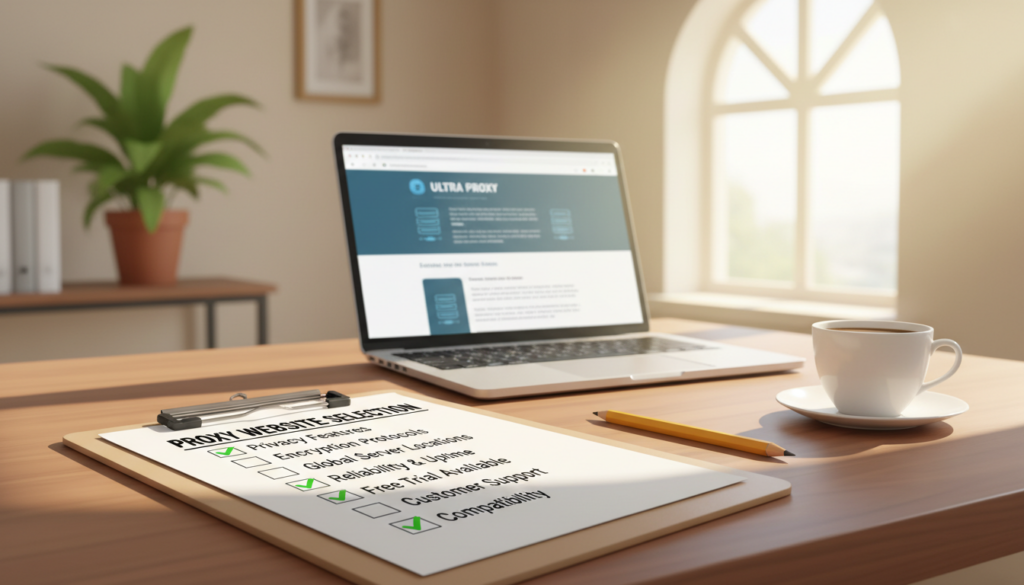
How to Choose the Right Proxy Service: A Checklist
Choosing a proxy isn’t just about finding the cheapest option. It’s about finding the right tool for your job. The market is full of providers, each making bold claims. Without a clear plan, you risk wasting money or compromising your security.
I use a simple, four-step checklist to cut through the noise. It ensures I match a service’s capabilities to my specific needs every time.
This methodical approach saves you from future headaches. Follow these steps in order, and you’ll confidently identify a reliable proxy website that delivers on its promises.
Step 1: Define Your Primary Objective
Your first question should be: “What do I need this proxy for?” The answer dictates everything that follows. A service perfect for streaming Netflix abroad will fail at large-scale data collection.
I break down common objectives into three categories. For accessing geo-blocked streaming or shopping sites, you need high-speed connections and residential IPs. For web scraping or market research, a large, rotating pool of IPs is non-negotiable. If your goal is general privacy on public Wi-Fi, strong anonymity and a strict no-log policy are your top priorities.
Write down your primary use case. This single decision will guide your next three choices.
Step 2: Decide Between Residential and Datacenter
With your objective clear, you can now choose the right IP origin. This choice balances legitimacy against speed and cost.
Residential proxies use IP addresses assigned by real Internet Service Providers to real homes. They appear very legitimate to websites, making them ideal for bypassing tough geo-blocks or accessing social media platforms. However, they are often more expensive and can have slower speeds.
Datacenter proxies are created in bulk from cloud servers. They are much faster and more affordable. Their downside is that websites can easily detect and block them because they don’t come from consumer ISPs. I recommend them for speed-intensive tasks like ad verification or bulk data scraping where getting blocked is a manageable risk.
Step 3: Evaluate Free vs. Paid Options
This is a critical juncture. The allure of a free service is strong, but the hidden costs are higher. I strongly advise against using free public proxies for any serious or sensitive task.
Free proxies are often overloaded, painfully slow, and disconnect frequently. Worse, they can be honeypots set up to harvest your data. The operators have no incentive to provide security or support. A paid service from a reputable provider invests in infrastructure, security, and customer service. You are not just buying an IP address; you are buying reliability and peace of mind.
The table below highlights the stark differences:
| Feature | Free Proxies | Paid Proxy Services |
|---|---|---|
| Security Level | Very high risk. Often lack encryption and may inject malware. | High. Use secure protocols (HTTPS, SOCKS5) and maintain server integrity. |
| Speed & Bandwidth | Severely limited, with throttling and crowded servers. | Guaranteed high speeds with scalable bandwidth options. |
| Reliability & Uptime | Extremely unreliable. Servers vanish without notice. | High uptime (99%+) with consistent, stable connections. |
| Customer Support | Nonexistent. | Dedicated support via chat, email, or ticket systems. |
| Data Logging Policy | Almost always log your activity; privacy is a myth. | Reputable providers offer transparent, audited no-logging policies. |
Investing in a paid service is investing in your own project’s success and security.
Step 4: Check for Essential Features
Finally, drill into the specifics of the paid services on your shortlist. Not all paid providers are equal. Here are the essential features I vet before making a final decision:
- Size and Rotation of IP Pool: A larger, global pool offers more flexibility and reduces the chance of IP bans.
- Geographic Coverage: Ensure they have proxies in the specific countries or cities you need.
- Connection Speed and Latency: Look for performance benchmarks or trial periods to test speed yourself.
- Uptime Reliability: Seek providers that publish uptime statistics or offer service level agreements (SLAs).
- Quality of Customer Support: Responsive support is crucial for troubleshooting setup or connection issues.
- Transparent Privacy Policy: The best proxy website will have a clear, easy-to-find policy stating they do not log your browsing data.
By working through this checklist, you move from guesswork to a confident, informed choice. You’ll select a proxy service that is a powerful asset, not a liability.
A Beginner’s Guide to Setting Up a Proxy
Ready to control your online traffic? Setting up a proxy is a great first step. This guide will walk you through it. We’ll cover browser setups for Chrome and Firefox, and system-wide proxy on Windows.
Before starting, gather your proxy server details. You’ll need the IP address, port number, and any login info. Make sure you have this from your proxy provider.
| Setup Method | Scope of Effect | Key Input Fields Required |
|---|---|---|
| Browser Proxy (Chrome/Firefox) | Only web traffic from that specific browser | Proxy IP, Port, Authentication credentials |
| System-Wide Proxy (Windows) | All internet traffic from your computer | Proxy IP, Port, Script address (optional) |
| Testing Your Setup | Verification step for any method | Access to an IP checking website |
How to Configure a Proxy in Google Chrome
Chrome uses your system’s proxy settings by default. To set a proxy for Chrome, use its settings.
- Click the three-dot menu in the top-right corner and select Settings.
- In the left sidebar, click System, then select Open your computer’s proxy settings. This redirects you to Windows settings.
- Alternatively, you can install a Chrome extension like “Proxy SwitchyOmega” for more granular control within the browser.
- When in Windows settings (see below), under “Manual proxy setup”, toggle Use a proxy server to On.
- Enter your proxy server’s IP address and port in the provided fields.
- If your proxy requires a login, Chrome will prompt you for a username and password when you first try to browse.
How to Configure a Proxy in Mozilla Firefox
Firefox has its own proxy configuration menu, separate from your system settings. This gives you more flexibility.
- Click the three-line menu in the top-right and select Settings.
- In the left panel, scroll down and click Network Settings.
- In the “Connection Settings” window, select Manual proxy configuration.
- In the “HTTP Proxy” field, enter your proxy server’s IP address.
- In the adjacent “Port” field, enter the correct port number (like 8080 or 3128).
- Check the box that says Use this proxy server for all protocols to simplify setup.
- If authentication is needed, click OK and Firefox will prompt you for credentials on your first connection attempt.
How to Set a System-Wide Proxy on Windows 10/11
Setting a proxy at the system level routes all applications’ internet traffic through it, not just your browser.
- Open the Start Menu and click the gear icon to open Settings.
- Go to Network & Internet and select Proxy from the left-hand menu.
- Under the “Manual proxy setup” section, toggle the Use a proxy server switch to On.
- Enter the proxy IP address and Port in the fields provided.
- You can optionally add specific addresses to the “Use the proxy server except for” list for bypassing the proxy.
- Click Save. Windows may ask for administrator permission.
- For advanced setups using a configuration script (PAC file), use the “Automatic proxy setup” section instead.
How to Test if Your Proxy is Working
After configuration, you must verify the connection is active and working correctly.
The simplest test is to visit an IP address checking website. I recommend whatismyipaddress.com or ipleak.net.
- With your proxy configured, open your browser and go to one of these sites.
- The website will display the IP address it detects. This should be your proxy server’s IP, not your personal home IP.
- If the displayed IP matches the one provided by your proxy service, your setup is successful.
- For a more thorough test, check for DNS leaks on ipleak.net. This ensures all your data is routed through the proxy.
- Finally, try accessing a website that was previously geo-blocked for you. If you can now access it, your proxy is functioning as intended.
If the IP check still shows your real address, double-check your proxy settings for typos. Also, ensure any VPN software is turned off, as it can override proxy settings.
Proxy vs. VPN: Understanding the Key Differences
Many people think proxies and VPNs are the same, but they’re not. They serve different purposes and have unique features. Both can hide your IP address, but they handle privacy and security differently.
Level of Encryption and Security
A Virtual Private Network (VPN) creates an encrypted tunnel for all data. This means your data is scrambled, keeping you safe from public Wi-Fi snoops and your internet provider.
A standard proxy server acts as a gateway, not a shield. Most proxies don’t offer strong encryption. Your data might be visible between your device and the proxy. For real security, a VPN is better.
Scope of Traffic Coverage
VPNs cover your entire system. Once connected, the VPN software reroutes all traffic from every app on your device. This is a big plus for privacy.
A proxy server is more specific. You can set your web browser to use a proxy, but other apps use your direct connection. This makes proxies great for specific tasks, like accessing region-locked websites.
Typical Use Cases for Each
I suggest using a proxy server for web tasks where encryption isn’t crucial. This includes web scraping, bypassing geo-blocks, and managing social media accounts.
VPNs are best for full privacy and security. They’re perfect for public Wi-Fi, remote work, or areas with heavy surveillance.
| Feature | Proxy Server | VPN |
|---|---|---|
| Primary Encryption | Minimal or none (varies by type) | Strong, end-to-end encryption |
| Traffic Coverage | Usually application-specific (e.g., browser) | Entire device system-wide |
| Ideal For | Web scraping, geo-unblocking, content filtering | Public Wi-Fi security, full anonymity, remote work |
| Impact on Speed | Often faster for simple tasks | Can be slower due to encryption overhead |
Choosing between a proxy and a VPN depends on your needs. For web-based anonymity, a proxy server is good. For full privacy, a VPN is the best choice.
Conclusion
I’ve looked into how a proxy server works as a key online helper. It changes how we connect to the internet.
A proxy helps keep your online identity hidden and can get past blocked websites. It also helps with tasks like web scraping or managing networks.
Choosing between a residential proxy and a datacenter proxy is important. The right choice depends on what you need, like privacy or speed.
Finding a trustworthy provider is key for safety. Free proxies might seem good but can be risky.
While a VPN gives more security, a proxy is better for specific tasks. Knowing the difference helps me make better choices.
This guide is just the beginning. Now, I can start using a proxy for my own needs.
Learning about proxy servers makes my online life better. It gives me more privacy, access, and control over my digital world.
FAQ
What is a proxy server in simple terms?
A proxy server acts like a digital middleman. It sits between your device and the internet. When you browse, your requests first go to the proxy. It then sends them to the website, hiding your IP and location.
How does a proxy actually work step-by-step?
Here’s how it works: First, your web traffic goes to the proxy’s IP address. The proxy then gets your request, hides your IP, and sends it to the website. The website sends data back to the proxy, which then sends it to you. This is the core of proxy usage.
What are the main types of proxies?
Proxies are categorized by function and origin. There are forward and reverse proxies, HTTP/HTTPS and SOCKS5 proxies, and transparent or anonymous proxies. Residential proxies come from real ISP connections, while datacenter proxies come from cloud servers. Each type has its own use in the proxy network.
What is a common, practical use for a proxy?
One common use is bypassing geo-restrictions. For example, you can use a proxy to access streaming content or news websites blocked in your area. This is useful for both individuals and businesses doing market research.
What’s the difference between a proxy and a VPN?
While both route your traffic, a VPN offers more encryption and security. A proxy, especially a standard HTTP one, doesn’t encrypt traffic and only handles web browser requests. I use a VPN for privacy, but a specialized proxy for tasks like web scraping.
How do I set up a proxy on my computer?
To set up a proxy, start by configuring it in a browser. For example, in Google Chrome or Mozilla Firefox, enter the proxy details in network settings. For all PC traffic, set a system-wide proxy in Windows or macOS network settings.
How can I test if my proxy is working correctly?
To test, visit “whatismyipaddress.com” before and after connecting to the proxy. If it’s working, the IP address and location shown will be the proxy’s, not yours. This confirms your traffic is routed through the proxy.
Are free proxy services safe to use?
Free proxy services are risky. They can inject malware or ads and log your data. I always recommend a reputable paid provider with a no-logging policy for safe proxy usage.
What is a reverse proxy?
A reverse proxy sits in front of web servers. It protects the server, distributes traffic, and handles SSL encryption. It’s key for website performance and security, not for end-users.
Why is the IP address type (residential vs. datacenter) so important?
The IP origin is crucial for web scraping and ad verification. Residential proxies mimic regular user traffic, making them less likely to be blocked. Datacenter proxies are faster but easier to detect and ban. Choosing the right type is essential for proxy service selection.
Leave a Reply